Progress Tracking — Assessor's guide
This guide is for assessors — action plan owners (or their delegates) who have been invited to report on the progress of their action plans and deliverables during a Progress Tracking cycle. If you are an Internal Audit user setting up the tracking cycle or reviewing assessments, see the main Progress Tracking page instead.
As an assessor, your role in the cycle is to:
- Set a status on each of your deliverables;
- Set a status on the related action plan once its deliverables are evaluated;
- Add any comment, evidence, or attachment the reviewer will need;
- Lock and submit your assessment so a reviewer can validate it.
Receiving an invitation
When the Internal Audit team opens a tracking cycle, you receive:
- An email with a direct link to your assessment dashboard;
- An in-app notification in QuartzIQ.
The email arrives when the governance process starts, when a reminder is sent, or when a reviewer sends an assessment back to you. The link drops you directly on the assessment dashboard for the items you own.
If you cannot find the email or the in-app card, ask the Internal Audit team to Send reminder from the Progress Tracking screen — this will re-send the email and recreate the in-app card.
Accessing your assessment dashboard
There are two equivalent entry points:
- From the email — click the link in the invitation;
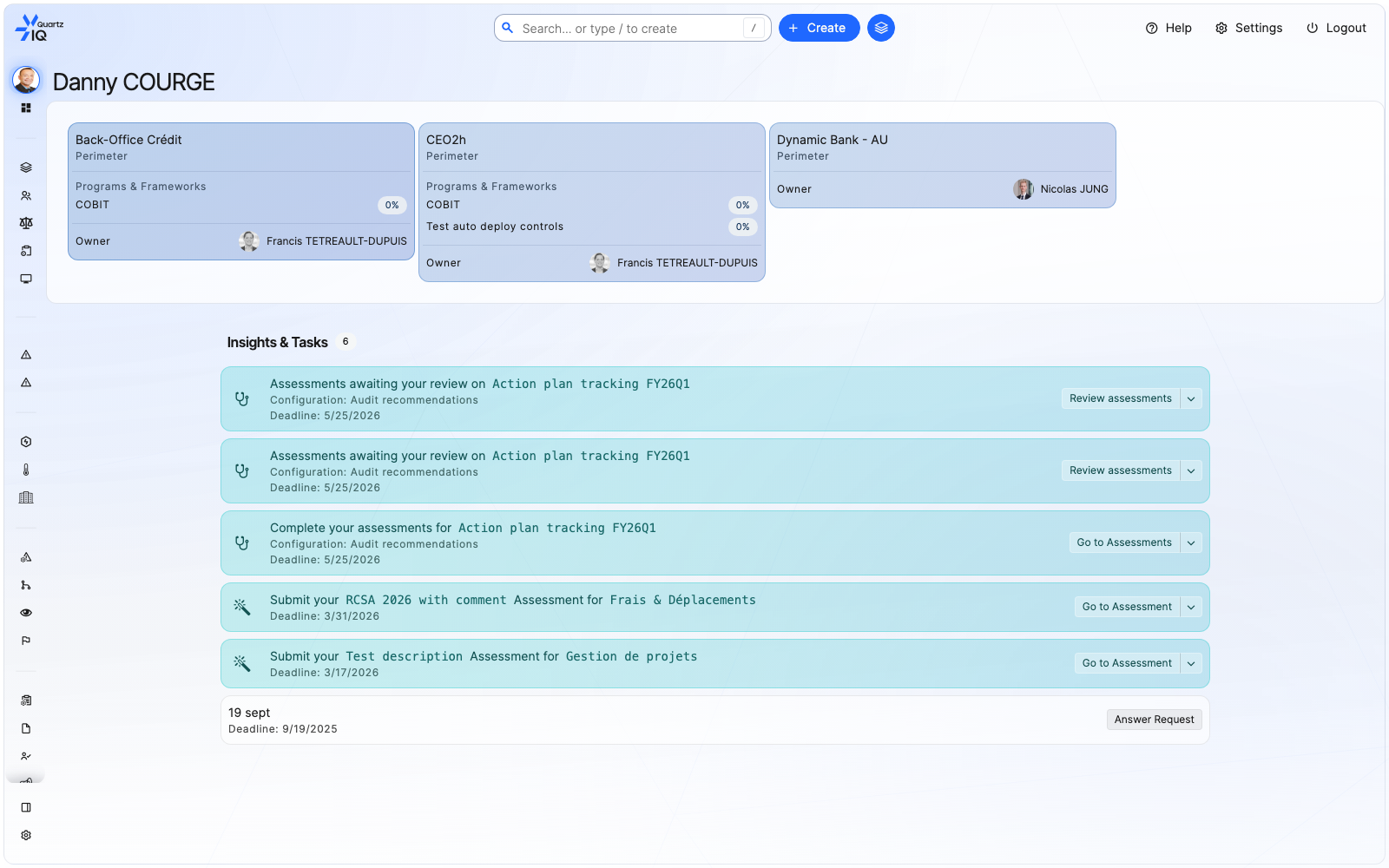
- From QuartzIQ home — open the home page; pending tasks appear in the Insights & Tasks panel with a Go to Assessments action for each cycle you are involved in.
Home tasks panel
Your card on the Progress Tracking main screen shows your current status:
| Status | What it means for you |
|---|---|
| Not started | You have not opened the dashboard yet. |
| In progress | You have started evaluating items but have not locked the assessment. |
| Pending review | You have submitted your assessment; a reviewer is validating it. |
| Reviewed | The reviewer has approved your assessment. Nothing more to do. |
Understanding the dashboard layout
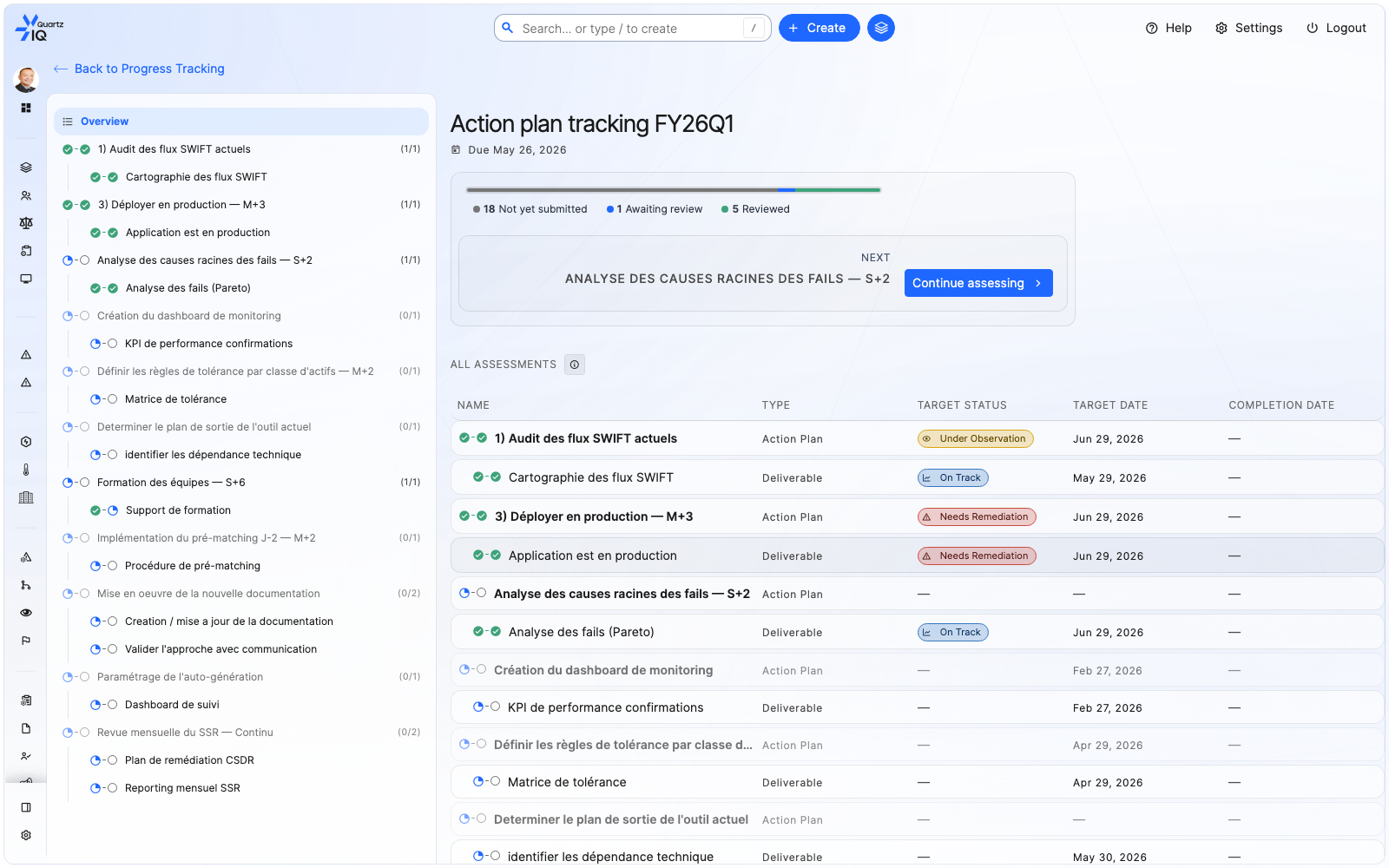
The assessment dashboard is organized in three areas:
- Left tree — a hierarchical list of the items you have to assess, grouped by audit observation → action plan → deliverable. Progress counts on each parent (e.g.
2 / 3 evaluated) make it easy to see what is left; - Main panel — the item you are currently assessing: its title, type, and the assessment form;
- Right panel (optional) — context for the current item (metadata, history, conversation thread).
A small auto-save indicator in the main panel confirms when your latest change has been persisted. You do not need to click a Save button — your inputs are saved as you go.
Assessment dashboard
Assessing a deliverable
The workflow is bottom-up: assess each deliverable of an action plan first, then assess the action plan itself.
Deliverable assessment
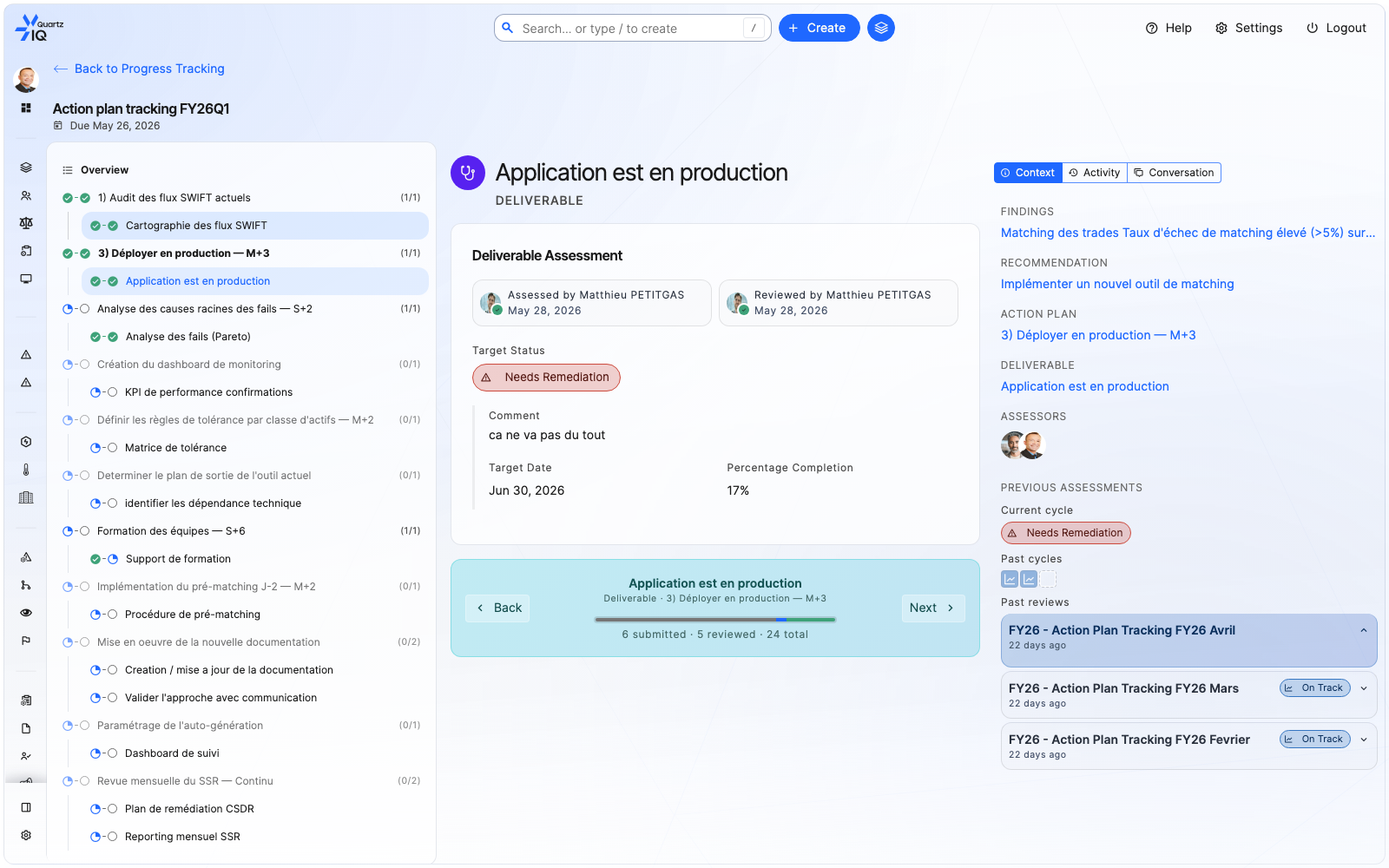
Open a deliverable from the left tree. The main panel shows:
- Target Status — pick one of the values offered for this deliverable (for example On Track, Needs Remediation, Done, Cancelled). Hover a value to see its definition.
- Target Date — the date by which the deliverable is expected to be completed (or was completed, depending on status).
- Percentage Completion — your estimate of how far the deliverable has progressed.
- Comment — a short narrative explaining the status, what was done, or what is blocking. Required for some statuses (the field is flagged with a red asterisk).
- Owner / Reviewer displayed at the top of the panel show who is accountable for this deliverable and who will validate your assessment.
- Previous Assessments — at the bottom you can see the status of this deliverable in past cycles, which is useful to track evolution from quarter to quarter.
You can come back and change your inputs at any time before locking the assessment.
A deliverable that is still Not started is treated as unevaluated. The parent action plan stays locked until every deliverable has a status set.
Assessing the action plan
Once every deliverable under an action plan has a status, the action plan itself becomes assessable. Open it from the left tree. The fields are the same as for a deliverable (Target Status, Target Date, Percentage Completion, Comment) but the value you pick summarizes the plan as a whole.
The progress bar at the top of the dashboard updates as you complete items: it shows how many of your items are evaluated and ready to be submitted, and a Continue assessing shortcut jumps to the next unevaluated item.
Comments, evidence, and attachments
- Comments are short free-text fields. Use them to capture what happened, why a date slipped, or what is blocking progress. Be specific — the reviewer cannot ask follow-up questions before approving.
- Attachments support any file the reviewer needs as evidence (screenshots, PDF reports, signed memos…). Attached files are visible to the reviewer and stay attached to the assessment for the audit trail.
- The Conversation tab (right panel) lets you exchange messages with the reviewer or other stakeholders without leaving the dashboard. The Activity tab keeps the full history of changes made to the assessment.
Locking and submitting your assessment
When all your items are evaluated, click Lock assessment and start review in the dashboard's top navigation.
This action:
- Marks your assessment as Pending review;
- Sends a notification to the reviewer(s) so they can validate it;
- Freezes your inputs — you cannot edit the assessment while it is in review.
You cannot lock the assessment if any deliverable or action plan is still unevaluated. The submit button stays disabled and the navigation bar shows how many items are still missing a status.
What happens after you submit
- If the reviewer approves, your card on the Progress Tracking main screen moves to Reviewed and your part of the cycle is over.
- If the reviewer sends the assessment back (for instance because a comment is missing or a status looks wrong), you receive an email and your card returns to In progress. Open the dashboard, address the reviewer's feedback (visible in the conversation thread or in the status comment), and click Lock assessment and start review again.
You can keep an eye on the status of your assessment at any time from the Progress Tracking main screen.